
C-UM-Procédure de configuration double authentification_EN

Object: Set Up Two-Factor Authentication
Description
This guide explains how to configure two-factor authentication for your Microsoft account using either the Microsoft Authenticator app or your phone number.
Steps
-
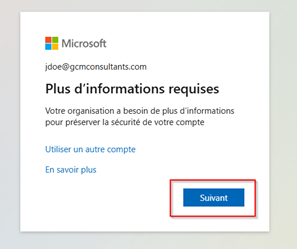
Click Next when prompted to add more security information to your account during your first login.
-
The system defaults to the Microsoft Authenticator app.
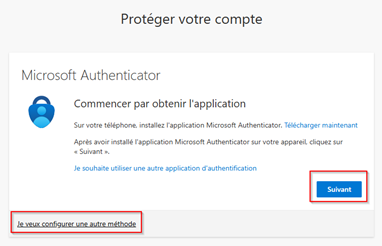 Follow the instructions for your preferred method below.
To set up with the Microsoft Authenticator app (Recommended):
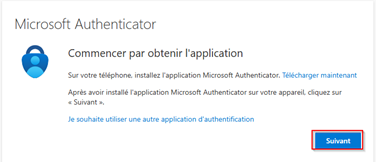
3. Download and install the Microsoft Authenticator app on your mobile phone from the Apple Store or Google Play Store.
4. Click Next in your browser once the app is installed.
-
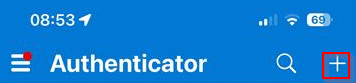
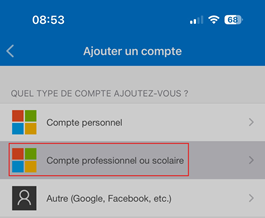
Open the app on your phone and tap the + icon to add an account.
-
Select Work or school account.
-
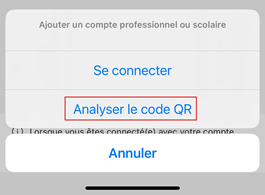
Choose the Scan a QR code option.
-
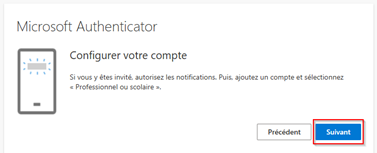
Return to your computer's browser and click Next.
-
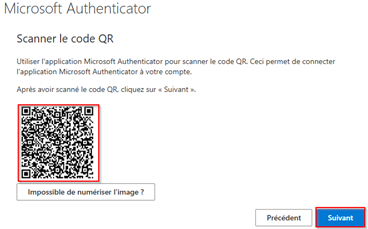
Use your phone to scan the QR code displayed on your computer screen, then click Next.
-
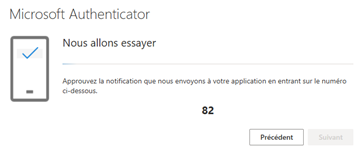
Approve the notification sent to your phone. You may need to enter the number shown on your screen.
-
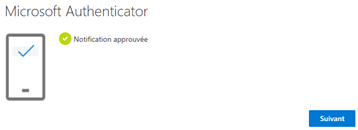
Click Next in the browser to complete the setup.
To set up with your phone number:
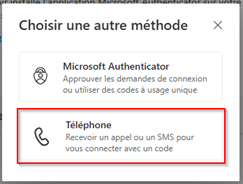
12. Click I want to set up a different method on the setup screen.
13. Select Phone from the list of options.
-
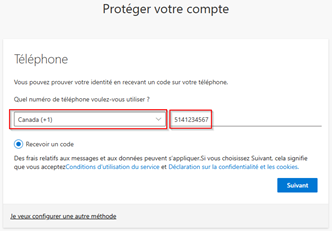
Select your country (e.g., Canada (+1)) and enter your mobile phone number without any dashes.
-
Ensure the Text me a code option is selected and click Next.
-
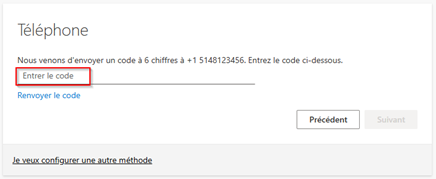
Enter the 6-digit code you receive via text message from Microsoft.
-
Click Next to confirm the code and complete the setup.
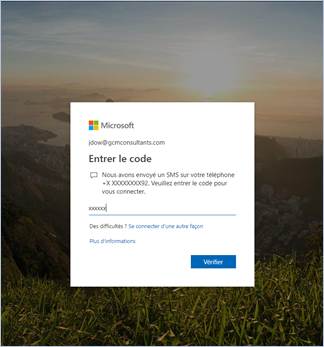
First Login After Setup:
18. Enter the code sent to your chosen device (app or text message) and click Verify to access your account.
Notes
- If you receive an authentication request when you are not trying to log in, do not approve it.
- Report any suspicious activity to your IT department immediately.