
C-UM-Procédure de configuration double authentification_EN

Object: Set Up Two-Factor Authentication
Description
This procedure explains how to configure two-factor authentication on your Microsoft account to increase its security. You can use either the Microsoft Authenticator app or your phone number.
Steps
-
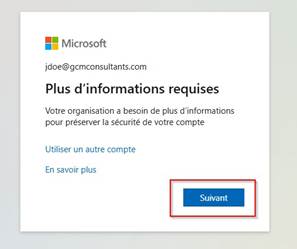
Click Next when prompted to add more security information to your account.
-
The system will prompt you to set up the Microsoft Authenticator app by default.
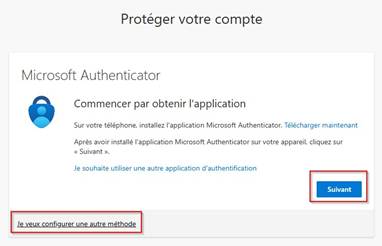
To set up using the Microsoft Authenticator app (recommended):
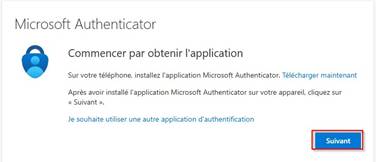
3. Download the Microsoft Authenticator app from the Apple App Store or Google Play Store, then click Next in your browser.
-
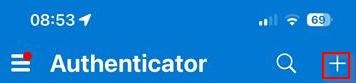
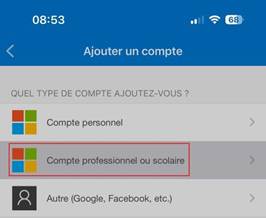
Open the app on your phone and tap the + icon to add an account.
-
Select Work or school account.
-
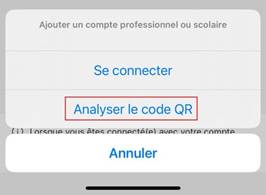
Choose the option to Scan a QR code.
-
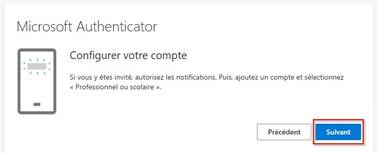
Return to your browser and click Next to display the QR code.
-
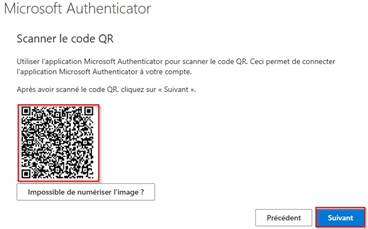
Scan the QR code on your computer screen with your phone, then click Next in the browser.
-
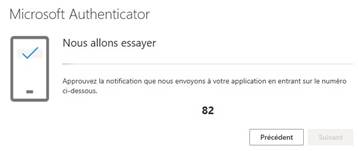
Approve the notification on your phone by entering the number displayed on your computer screen.
-
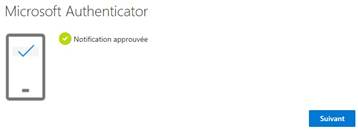
Click Next in the browser to complete the setup.
To set up using your phone number instead:
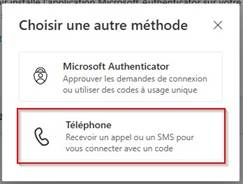
11. On the initial setup screen, click I want to set up a different method.
12. Select Phone from the list.
-
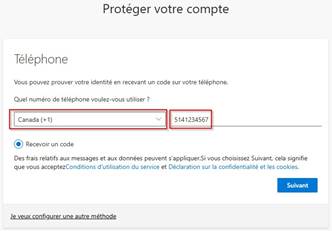
Select your country (e.g., Canada +1) and enter your mobile phone number without spaces or dashes.
-
Ensure the "Text me a code" option is selected and click Next.
-
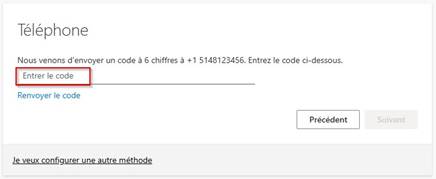
Enter the 6-digit code sent to your phone via text message.
-
Click Next to confirm the code and complete the setup.
First Login After Setup
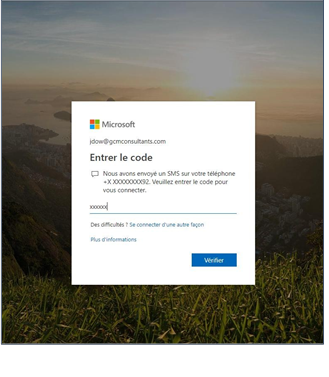
17. The first time you log in, enter the code sent to you via your chosen method and click Verify.
Notes
- If you receive an authentication request when you are not trying to log in, do not approve it and report the incident to the IT department immediately.