
C-UM-Windows11Upgrade_EN

Object: Upgrade Your Computer to Windows 11
Description
This guide explains how to check your current Windows version and how to upgrade your computer from Windows 10 to Windows 11.
Steps
- Right-click the
Startmenu and selectSettings.
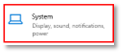
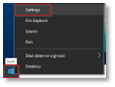
- Select
System, then clickAbout. - Check the
Windows specificationssection.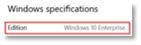 If it shows
 Windows 10, proceed to the next step. If it showsWindows 11, your computer is compliant and no further action is required. - Right-click the
Startmenu, selectSettings, then chooseUpdate & Security.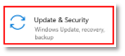
-
Select
Download and installin theWindows 11, version 24H2section.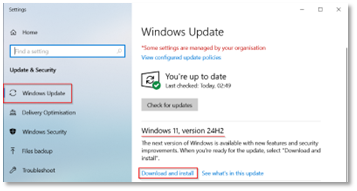
-
Restart your computer when prompted to complete the installation.
Notes
-
You can continue working while the update downloads and installs (approximately 2 hours).
-
A restart is required to finish the installation. Your computer will be unusable during this time (approximately 1 hour). We recommend performing this restart outside of working hours.
-
If you do not see the
Download and installoption: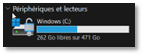
- Ensure you have at least 30 GB of free space on your Windows (C:) drive.
- If the option is still missing, certain settings may be blocking the upgrade. Please submit an IT support request.
-
After the restart, your computer is ready. If you have any questions or need assistance, please contact technical support:
- Portal: https://helpdesk.gcmconsultants.com
- Email: [email protected]
- Phone (Emergency only): 514.351.8643