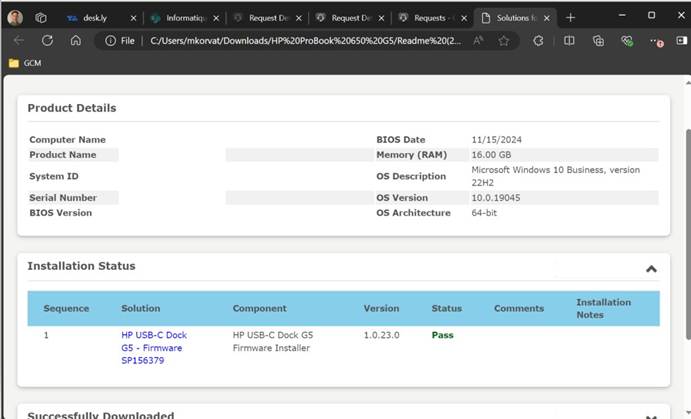
HPIA - Installation - EN

Object: HP Image Assistant (HPIA) Installation and Updates
Description
This guide explains how to install the HP Image Assistant tool and use it to update your computer's drivers and software.
Steps
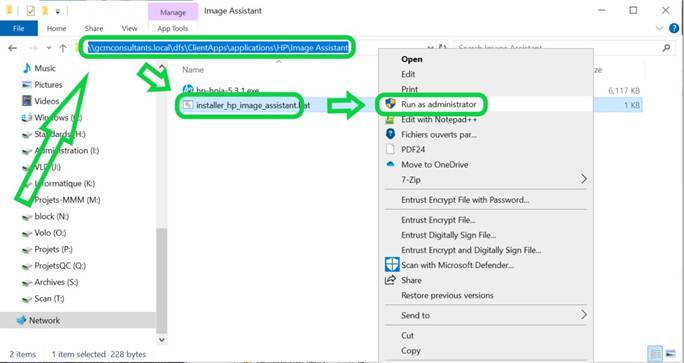
- Copy the following path and paste it into your File Explorer's address bar:
\\gcmconsultants.local\dfs\ClientApps\applications\HP\Image Assistant - Right-click the
installer_hp_image_assistantfile and select Run as administrator.
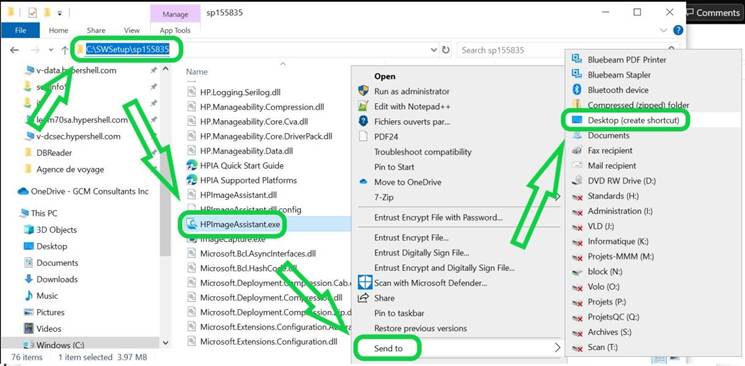
- Wait for the folder
C:\SWSetup\sp170327to open automatically. - Right-click the
HPImageAssistantapplication, select Send to, and then click Desktop (create shortcut).
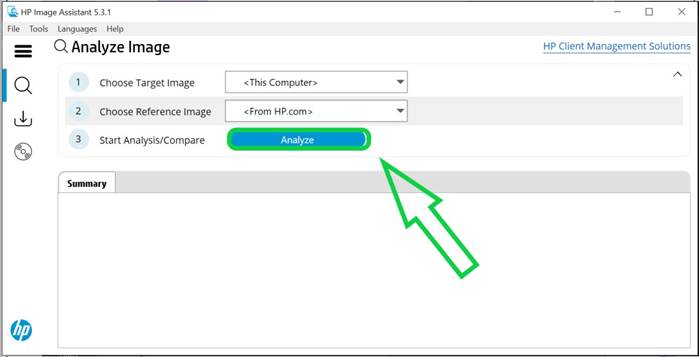
- Open the HP Image Assistant software using the new shortcut on your desktop.
- Click Analyze and wait for the analysis to complete.
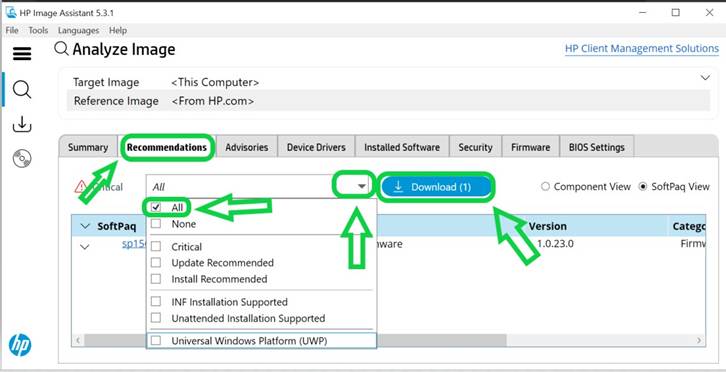
- Go to the Recommendations tab, open the dropdown menu, and select All.
- Click the Download button.
- Select the option Download SoftPaq(s), extract files, and install and click Start.
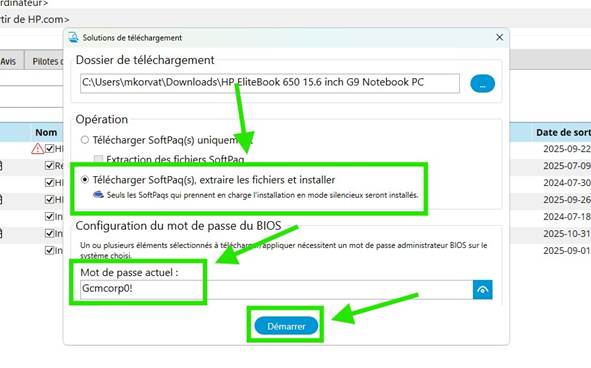
- If you are prompted for a BIOS password during the update, enter
Gcmcorp0!. - Wait for all updates to finish. A confirmation web page may open in your browser.
- Restart your computer to apply all the updates.