
ConsignO - Signature - EN

Object: Set Up Your Digital Signature in ConsignO
Description
This guide explains how to open your signature key and configure your visual signature appearance in the ConsignO software.
Steps
-
Copy and paste the path
C:\Users\%USERNAME%\Documents\Notariusinto your File Explorer's address bar and open your key file.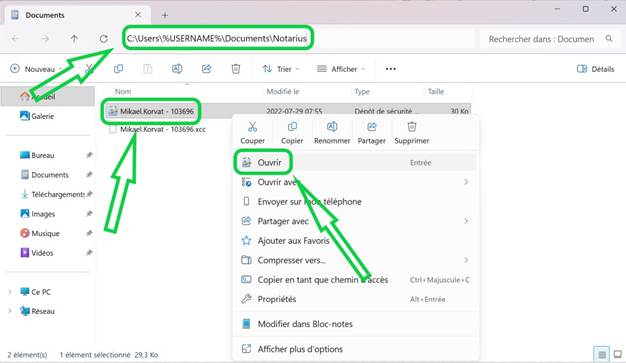
-
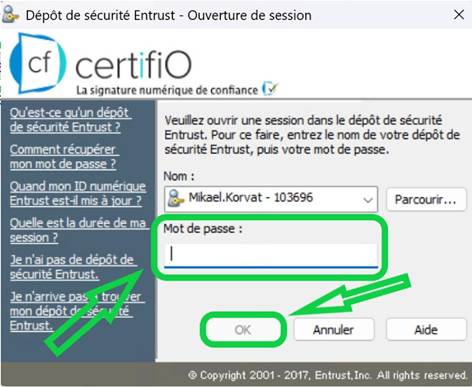
Enter your ConsignO password and click OK.
-
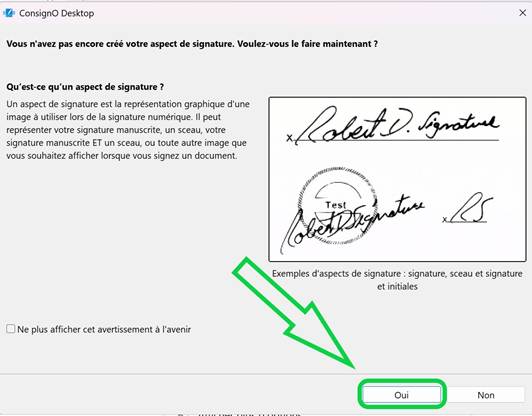
Open the ConsignO application and click Yes if prompted about signature aspects.
-
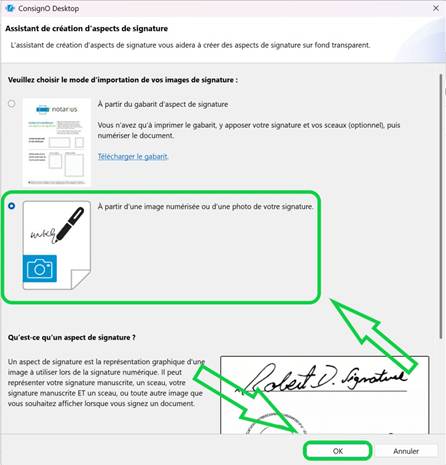
Select the option From a scanned image or picture of your signature and click OK.
-
Copy and paste
C:\Users\%USERNAME%\.consigno3\imagesinto your File Explorer's address bar, select your signature image, and click Open.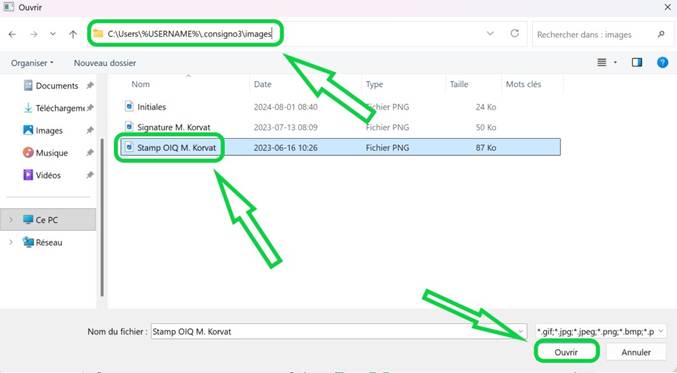
-
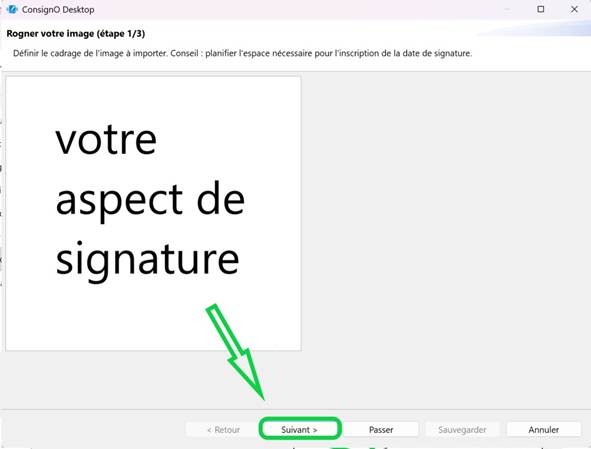
Click Next.
-
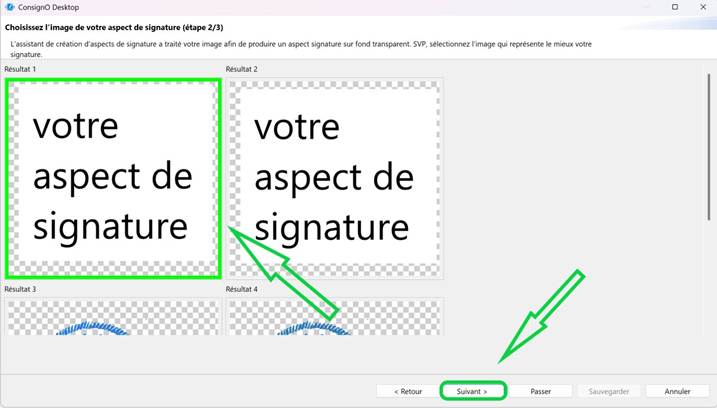
Select the desired signature appearance and click Next.
-
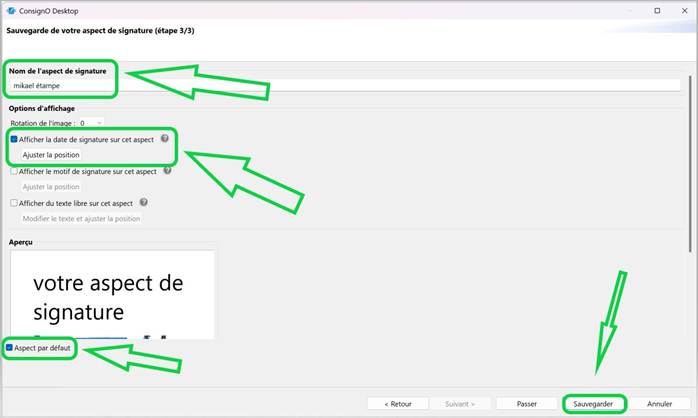
Name your signature appearance, check Show the date of signature on this aspect to include the date, check Default aspect, and click Save.
-
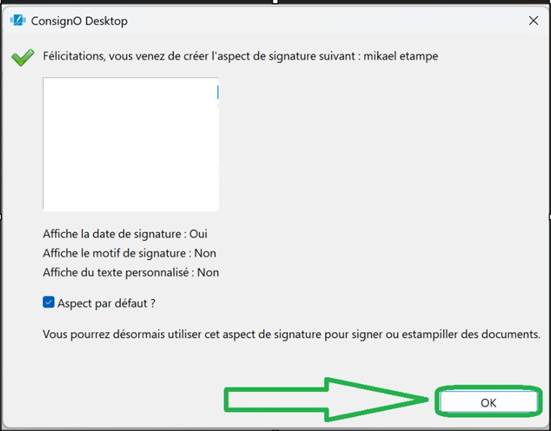
Click OK.
-
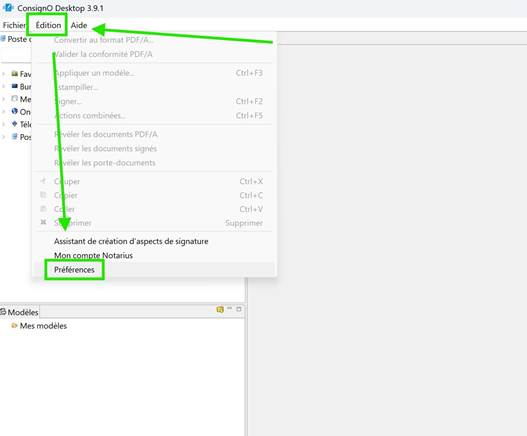
To add more signature appearances, click Edit from the main menu, then select Preferences.
-
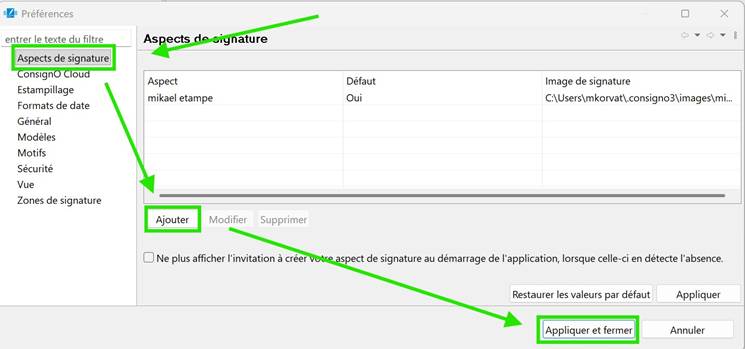
Go to the Signature aspects tab, click Add, and then click Apply and close.
Remarques
- If you cannot find the
Notariusfolder (step 1), try this path instead:C:\Users\%USERNAME%\OneDrive - GCM Consultants Inc\Notarius. - If you cannot find the
.consigno3\imagesfolder (step 5), try this path instead:C:\Users\%USERNAME%\OneDrive - GCM Consultants Inc\.consigno3\images.