
C-UM-SubcontratorVPN_Project_EN

Object: Connect to the VPN and Access Project Files
Description
This guide explains how to set up your account, install the VPN client, and access project files for the first time.
Steps
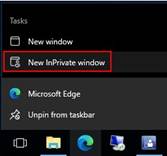
- Open a web browser in "InPrivate" or "Incognito" mode and navigate to
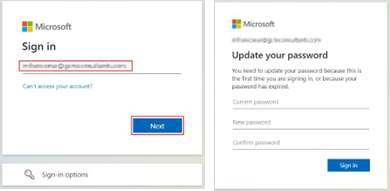
https://myaccount.microsoft.com. - Authenticate with the credentials provided by the IT Department.
-
Change your password when prompted. It must be at least 14 characters and use three of the four character types (uppercase, lowercase, numbers, symbols).
-
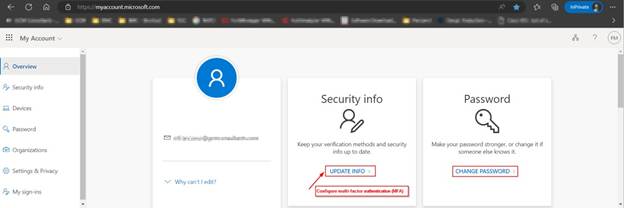
Click UPDATE INFO in the Security Info tab to configure Multi-Factor Authentication (MFA).
-
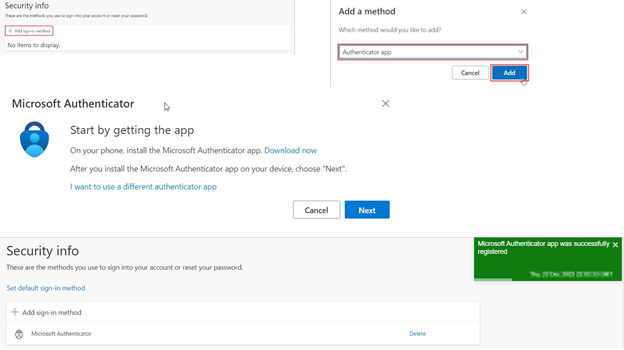
Add a sign-in method by selecting Authenticator App and follow the on-screen instructions to complete the configuration.
-
Download the FortiClient VPN client from
https://www.fortinet.com/support/product-downloads#vpn.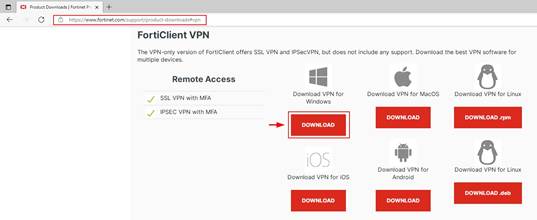
-
Install the FortiClient VPN client by following the on-screen instructions.
-
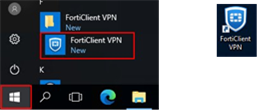
Launch the FortiClient VPN application from the Start Menu or your desktop.
-
Click Configure VPN, complete the information as shown below, and click Save.
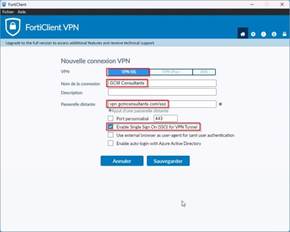
- VPN (type): SSL-VPN
- Connection Name: GCM Consultants
- Remote Gateway:
vpn.gcmconsultants.com/sso - Enable: Single Sign-On (SSO) for VPN Tunnel
- Enable: Use external browser as user-agent for saml user authentication
-
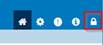
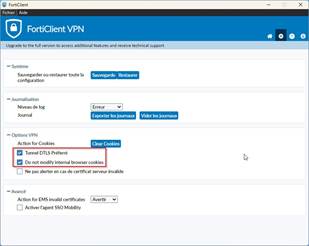
Click the lock icon to access more options.
-
Click the gear icon and set the VPN Option to Preferred DTLS Tunnel.
-
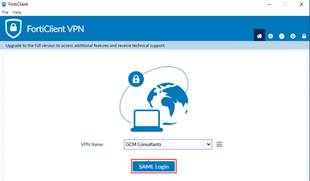
Return to the main screen and click the SAML Login button to connect to the VPN.
-
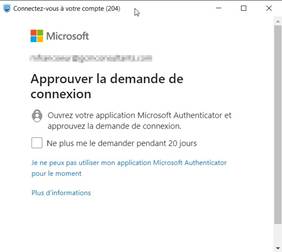
Authenticate with your email address and approve the sign-in request from your Microsoft Authenticator app.
-
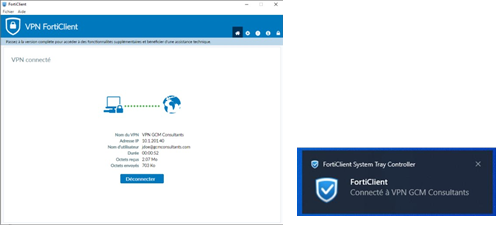
Verify that you are successfully connected to the VPN.
-
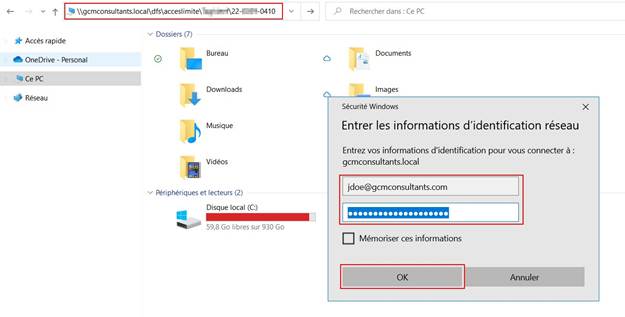
Open Windows Explorer to access project files while connected to the VPN.
-
Use your GCM credentials to authenticate if prompted.
-
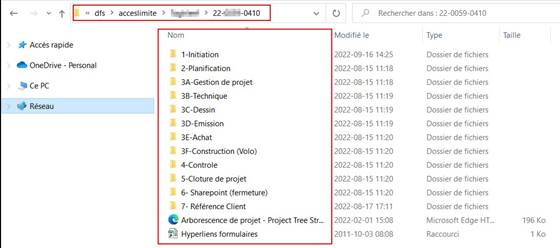
Access your available project directories.
Notes
- Remember to disconnect from the VPN at the end of your workday.