ConsignO - OneDrive - EN

Object: Back Up ConsignO Files to OneDrive
Description
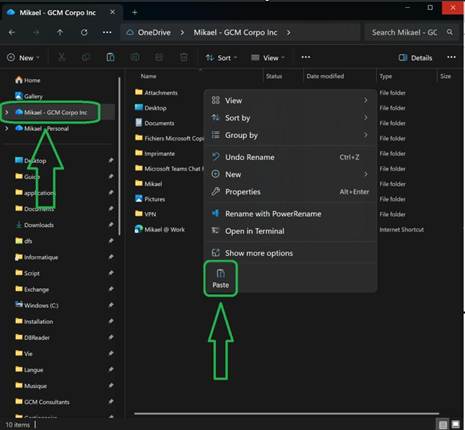
This procedure explains how to copy your ConsignO signature and configuration files to your OneDrive for backup.
Steps
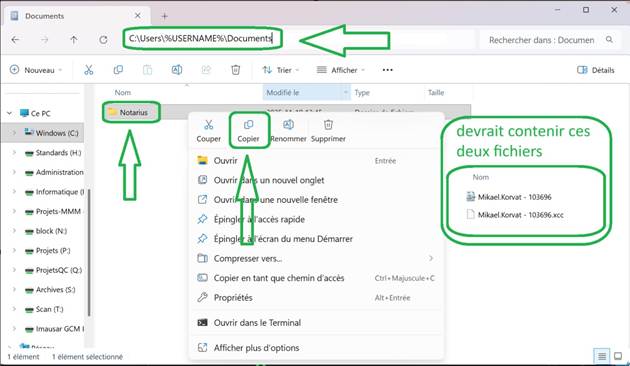
- Open File Explorer, paste
C:\Users\%USERNAME%\Documentsinto the address bar, and press Enter. - If the folder does not exist, try this path instead:
C:\Users\%USERNAME%\OneDrive - GCM Consultants Inc\Documents. - Find the
Notariusfolder, right-click on it, and select "Copy". Make sure it contains your two signature files.
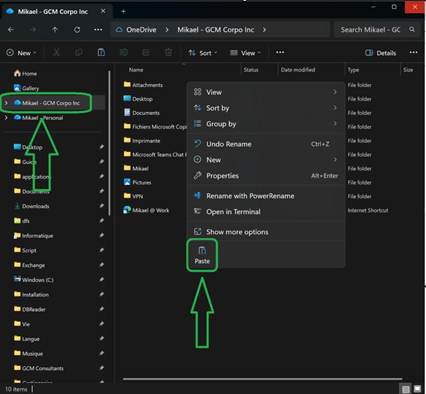
- Return to File Explorer and paste
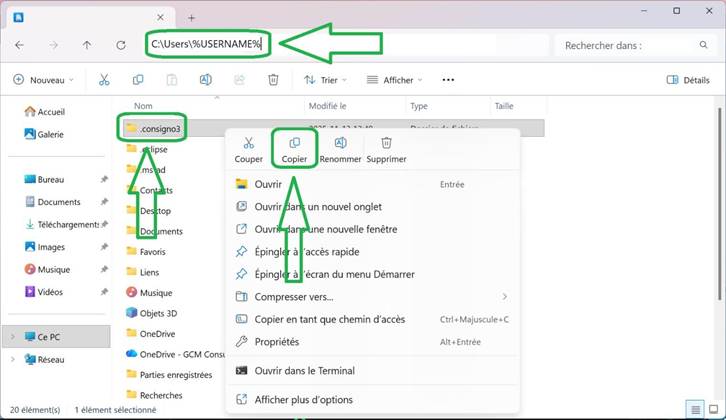
C:\Users\%USERNAME%into the address bar, then press Enter. - If the folder does not exist, try this path instead:
C:\Users\%USERNAME%\OneDrive - GCM Consultants Inc. - Find the
.consigno3folder, right-click on it, and select "Copy".