
C-UM-Windows11Upgrade_EN

Object: Upgrade your computer to Windows 11
Description
This guide explains how to check your current Windows version and upgrade your computer from Windows 10 to Windows 11.
Steps
-
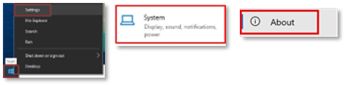
Right-click the Start menu, select Settings, then choose System and About.
-
Look for the Windows specifications section.
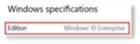 If it shows Windows 10, proceed to the next instructions. If it shows Windows 11, you are compliant and no action is required.
 -
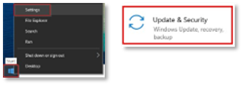
Right-click the Start menu, select Settings, then choose Update & Security.

-
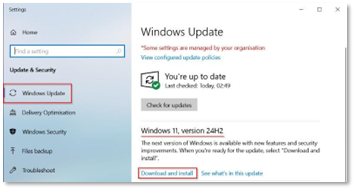
Select Download and install in the Windows 11, version 24H2 section.
-
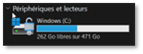
If you do not see the Download and install option, first ensure you have at least 30 GB of free space on your Windows (C:) drive.
-
If the option is still missing, certain settings or applications may be blocking the upgrade. Please submit an IT support request for assistance.
-
After the restart, your computer is ready. If you have any questions or need assistance, please contact technical support.

Notes
- You can continue working during the download and installation, which takes approximately 2 hours.
- A restart is required to complete the installation. Your computer will be unusable for about 1 hour during this process. We recommend performing this restart outside of working hours.