EMS - 7.2.10 - FCRemove - EN

Object: Uninstall and Reinstall FortiClient
Description
This procedure explains how to completely uninstall the FortiClient application using the FCRemove tool and then reinstall the correct version.
Steps
-
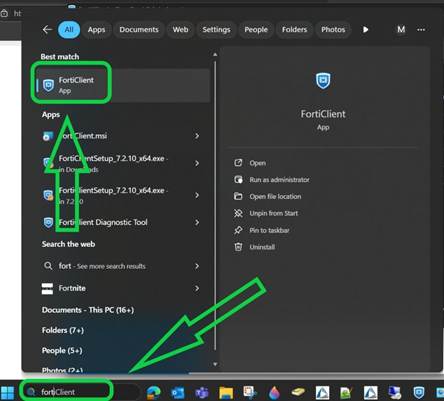
Search for and open the FortiClient application.
-
Go to the ZERO TRUST TELEMETRY tab and click Disconnect. Enter the password
83g651CYjOand click OK.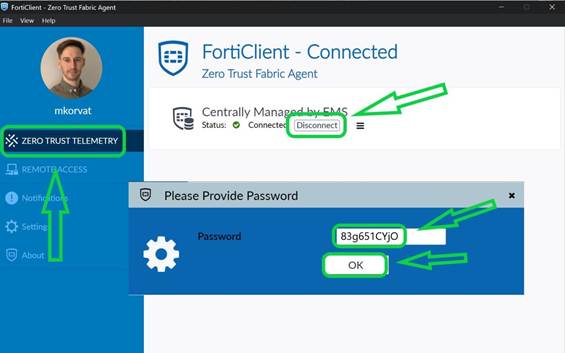
-
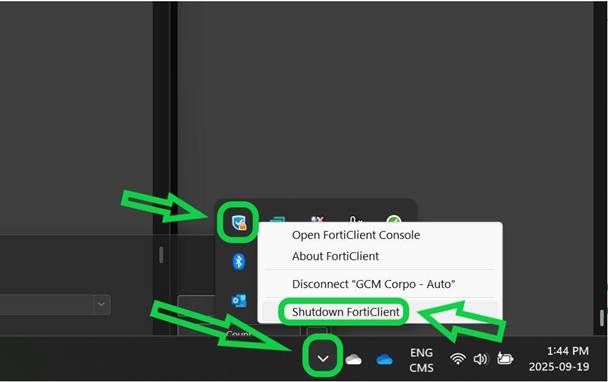
Click the arrow in the bottom-right corner of your screen to show hidden icons. Right-click the FortiClient icon and select Shutdown FortiClient.
-
Copy and paste this link into Microsoft Edge to download the
FCRemovetool: https://gcmconsultants-my.sharepoint.com/:f:/p/mkorvat/EmpyXksiIXdLtiT1vWrJm40BVsvXoinO2NVNhNEF1l0EFg?e=OOzQ6F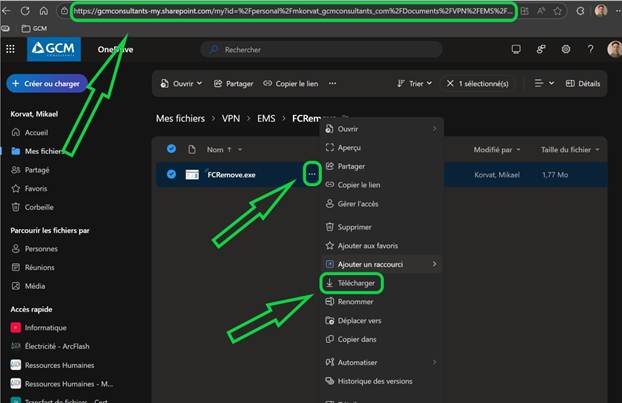
-
Go to your Downloads folder, right-click the
FCRemovefile, and select 'Run as administrator'. Wait 15 seconds, then restart your computer.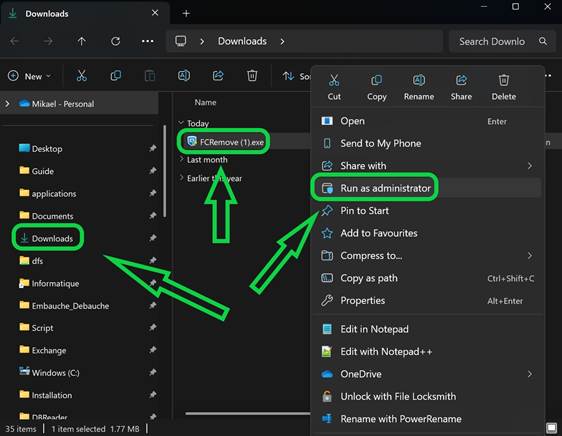
-
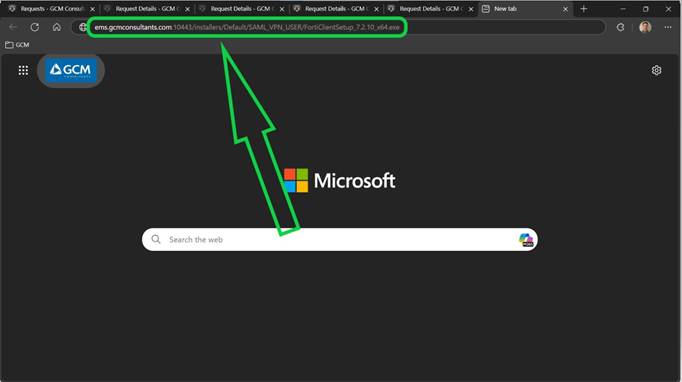
Copy and paste this link into Microsoft Edge to download the new FortiClient installer: https://ems.gcmconsultants.com:10443/installers/Default/User/FortiClientSetup_7.2.10_x64.exe
-
Go to your Downloads folder, right-click the
FortiClientSetup_7.2.10_x64file, and select 'Run as administrator'.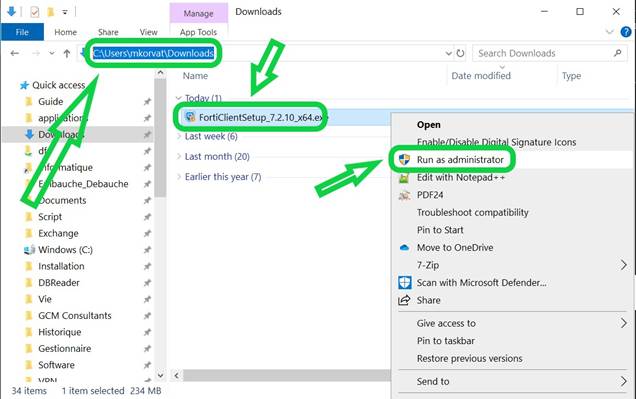
-
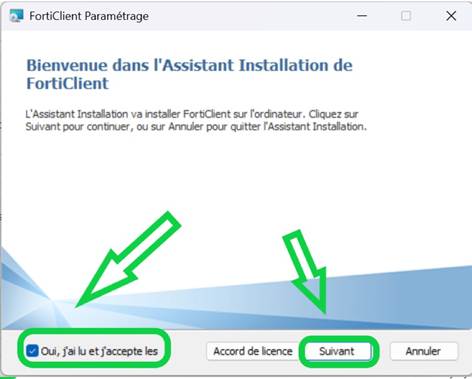
Check the box to accept the license agreement and click Next.
-
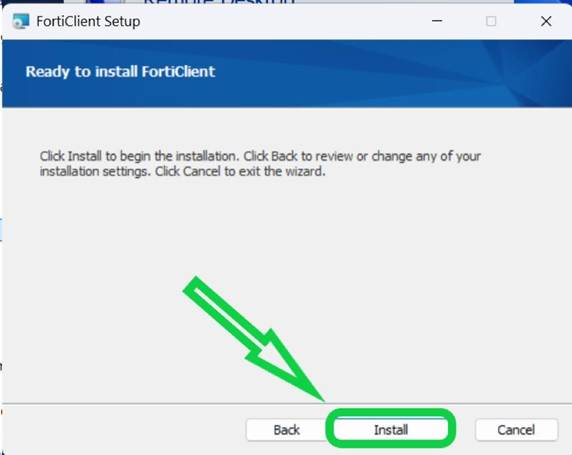
Click Install.
-
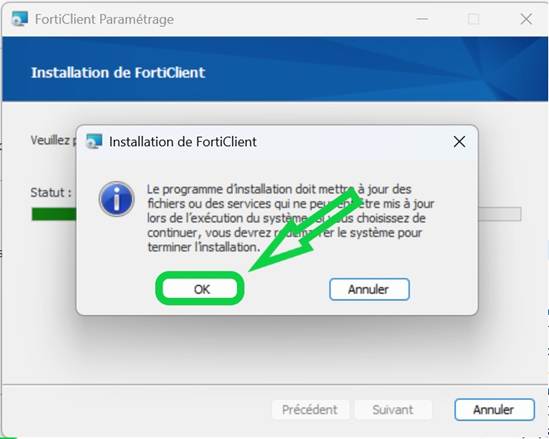
Click OK.
-
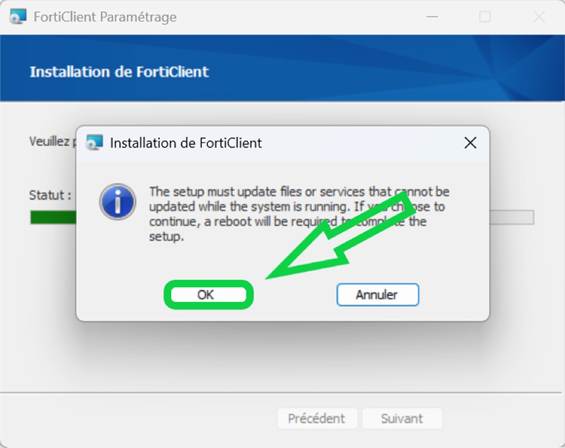
Click OK.
-
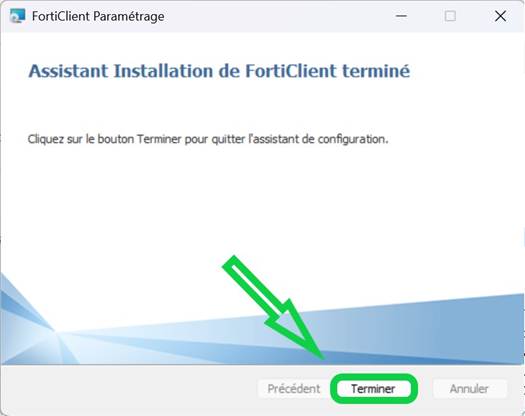
Click Finish.
-
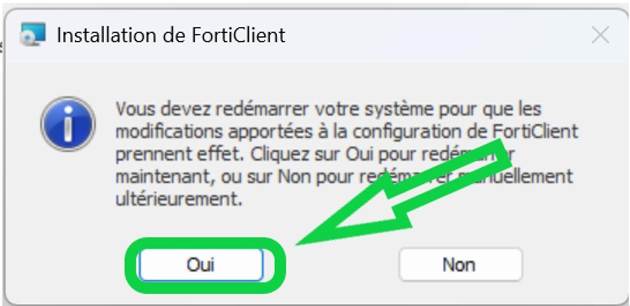
Click Yes to complete the installation and restart your computer.